article
Claude Is Now Available in Gemini Enterprise

Claude Is Now Available in Gemini Enterprise. Here’s How to Turn It On
Google made Anthropic’s Claude models available in the Gemini Enterprise app on October 15, 2026. Admins can enable Claude Opus 5.5 and Claude Sonnet 5.5, and users can select either model from the model selector.
Claude uses pay-as-you-go pricing, billed per token. Before enabling it, pay-as-you-go usage needs to be set up. Here’s how to enable the models and keep track of the costs.
What You Need
The Gemini Enterprise Admin role (roles/discoveryengine.agentspaceAdmin).
Pay-as-you-go usage above quota enabled for each edition in use. This requires a paid subscription and an invoiced Cloud Billing account.
Enable model selector turned on in the Feature Management tab.
Any Gemini Enterprise edition except Starter.
The available models are:
Claude Opus 5.5
Claude Sonnet 5.5
Both models are off by default. They’re available in the global, us, and eu locations.
How to Enable Claude
1. Open the Configuration Page
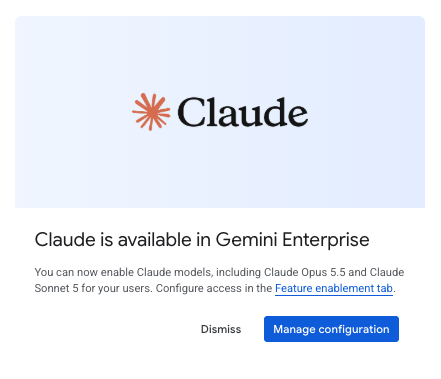
If a popup says Claude is available in Gemini Enterprise, click Manage configuration.
If the popup doesn’t appear, open Gemini Enterprise, go to Apps, select the app, then click Configurations in the left menu.
 2. Find the Third-Party Model Settings
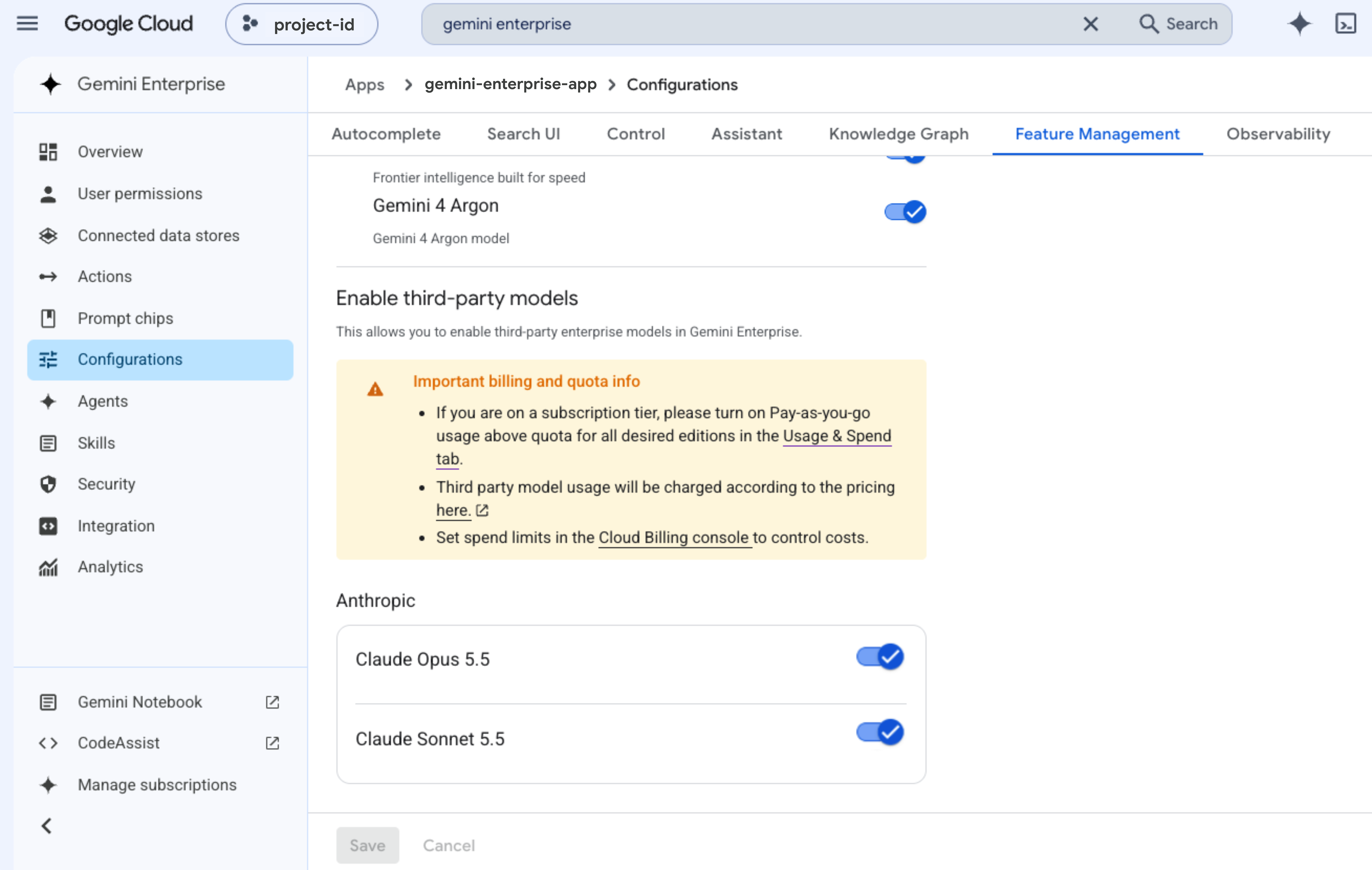
Open the Feature Management tab and scroll down to Enable third-party models.
The yellow Important billing and quota info box says that pay-as-you-go usage above quota must be enabled, usage is charged at the published pricing, and spend limits can be set in the Cloud Billing console.
3. Enable the Models
Under Anthropic, switch on Claude Opus 5.5, Claude Sonnet 5.5, or both.
These dialogs can appear:
In the pricing dialog, click Enable. If pay-as-you-go usage is off, click Go to Usage & spend, turn it on, then return to the model settings.
In the Terms of service dialog, scroll down and click Agree. It appears once per project and model family.
 4. Save the Changes
Click Save, then click I understand in the billing dialog.
Things to Note
The first time, it can take up to 15 minutes before users see the model.
To turn a model off, switch it off and click Save.
FAQ
How much does Claude cost?
Prices in USD per 1 million tokens for the global location:
Claude Opus 5.5: $4.00 input, $20.00 output.
Claude Sonnet 5.5: $2.00 input, $10.00 output.
Prices in the us and eu locations are 10% higher. Cache prices are on Google’s Quotas and overages page. Negotiated pricing may differ.
Why can’t I enable the toggle?
Check these three things:
Pay-as-you-go usage above quota is off. Go to Gemini Enterprise > Usage & Spending > Usage, select the edition, turn it on, and click Save changes.
The billing account must be eligible. Ask the billing administrator to check it.
The app runs on the Starter edition. Starter has no third-party models.
Where can I check the cost?
Open Gemini Enterprise > Usage & Spending > Billing.
The page shows overage and pay-as-you-go costs from the last 30 days, split into the Gemini Enterprise app, Agent Platform, and AI developer tools.
You need the Gemini Enterprise Admin role and either Billing Account Viewer or Billing Account Administrator on the billing account. The Billing tab appears only with these roles.
For more detail, click View details in Billing, or open Cloud Billing > Reports and use these settings:
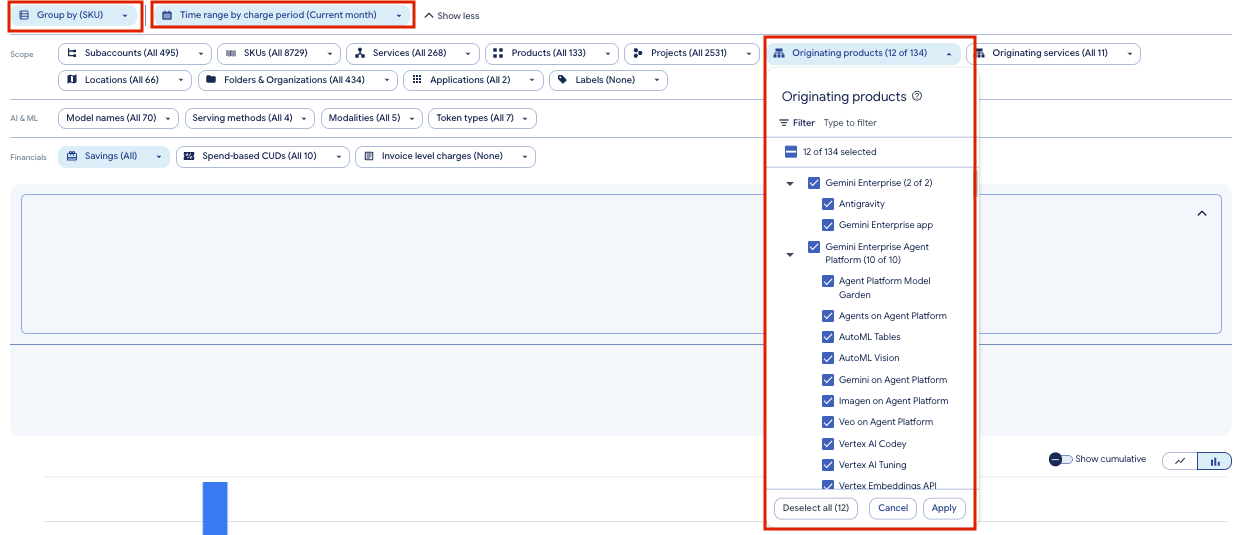
Group by: SKU.
Time range: Charge period, Current month. Select Last 30 days to match the Gemini Enterprise console.
Originating products: select Gemini Enterprise (Antigravity and Gemini Enterprise app) and Gemini Enterprise Agent Platform (all 10 items). The screenshot shows 12 of 134 selected. Click Apply.
Use the Originating products filter instead of the Services filter. According to Google, Gemini Enterprise costs appear under Vertex AI Search, so a service filter also shows other costs.
Can I set a spending limit?
Yes. The limit covers the Gemini Enterprise app, Agent Platform, and AI developer tools.
Go to Gemini Enterprise > Usage & Spending > Usage.
Under Project monthly spend limit, click Set limit.
In Cloud Billing, set the budget scope to Vertex AI (aiplatform.googleapis.com).
Once the limit is reached, overage usage stops. This can take a few minutes, so the final charge may exceed the limit.
How do I get a spending alert?
Set budget alerts in Cloud Billing. Cloud Billing sends an email when spending reaches the percentages you set.
References
Gemini Enterprise release notes, October 15, 2026
Note: This post is based on Google Cloud’s documentation as of October 22, 2026. Spend caps are new, so limits, eligible services and behavior may change. Check the references above and the official documentation for more recent or further information.
Want help putting this into practice?
Book a consultation with Indonesia's Google Cloud Diamond Partner.