article
We Can Now Set Spending Limits on Google Cloud

Cloud bills have a way of surprising people. A script runs longer than expected, a test endpoint gets left running over the weekend, or a Gemini API call gets stuck in a loop. The problem only becomes obvious when the invoice arrives, and by then, the damage is done.
With agentic AI, things get a little more complicated. Agents can call APIs, run tools, and trigger other tasks on their own. One mistake in a workflow can lead to thousands of unnecessary calls, and costs can add up quickly.
Google Cloud budget alerts can notify users when spending gets too high, but alerts won’t stop anything from running. Without someone checking the email, the meter keeps going.
Google Cloud now offers spend caps to help prevent this. A spending limit can be set, and the service pauses when the limit is reached. This tutorial walks through the setup.
Using Vertex AI, or moving from AI Studio to Vertex AI?
Check out our complete guide to get started: Vertex AI Adoption Guide.
What You Need Before Setup
The Billing Account Administrator role, or Billing Account Costs Manager on the billing account plus Editor on the project.
Currently, spend caps are limited to these services:
Vertex AI (now Agent Platform)
Cloud Run
Cloud Run functions
Gemini API
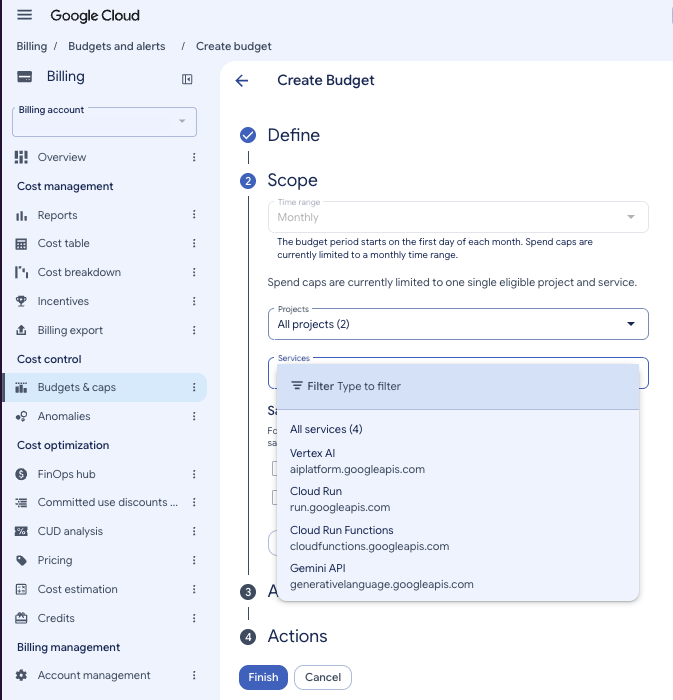
Each spend cap applies to one service in one project and resets monthly. Caps can’t be applied to folders, entire organizations, or resource labels.
Already have a budget that sends alerts? A new budget is needed because an existing alerts-only budget can’t be converted into a spend cap.
Steps
1. Define the Budget
Go to Billing > Budgets & caps > Create new.
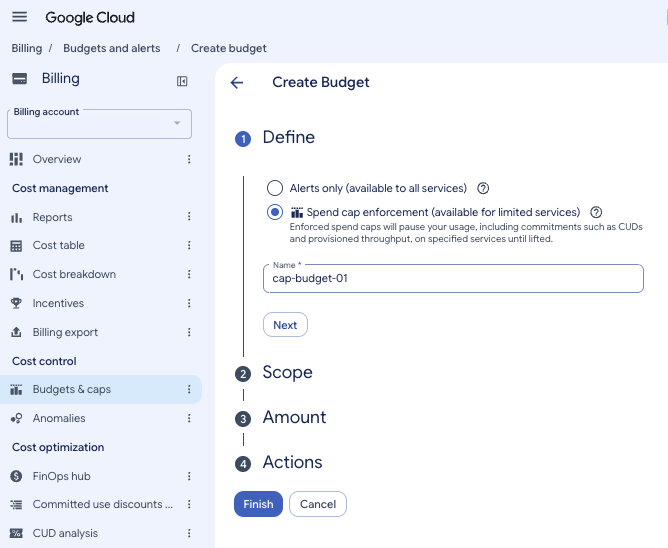
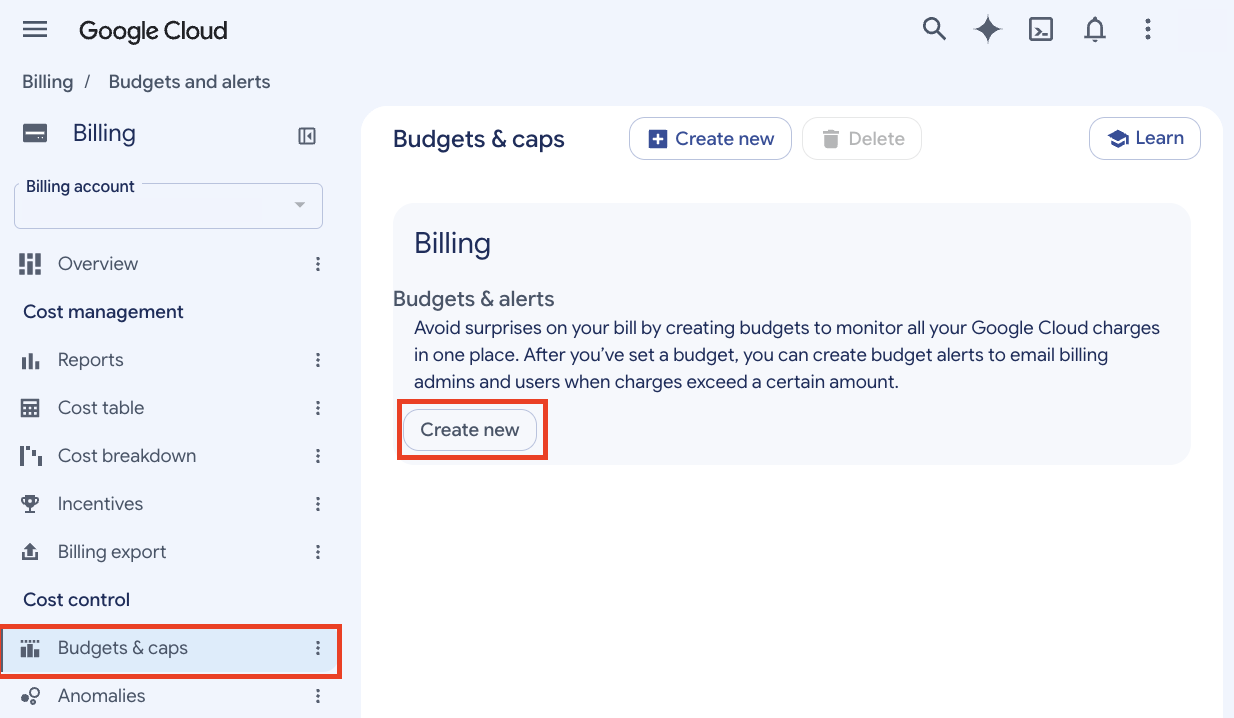 Select Spend cap enforcement, name the budget (for example, cap-budget-01), and click Next.
 2. Set the Scope
Choose the project and the service to cap. The budget period starts on the first day of each month.
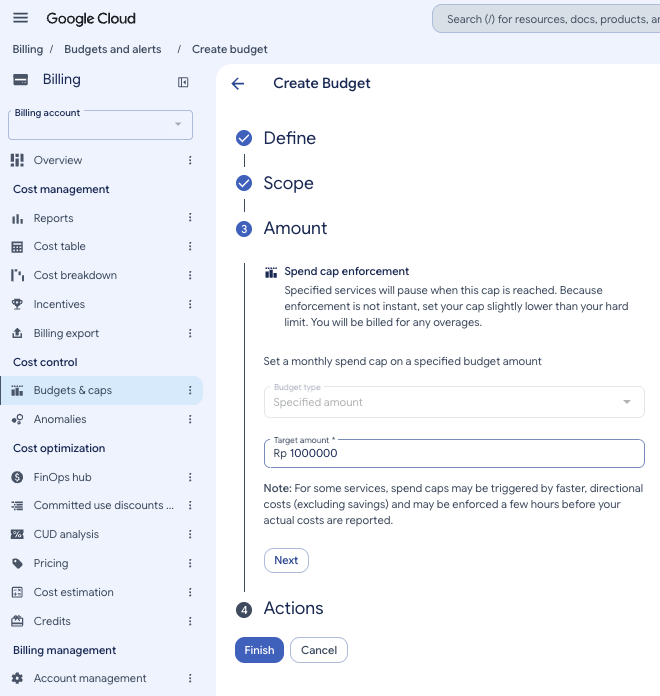
 3. Enter the Amount
Type your monthly cap in Target amount. Enforcement is not instant and you are billed for any overage, so set the cap a little below the limit you can actually afford.
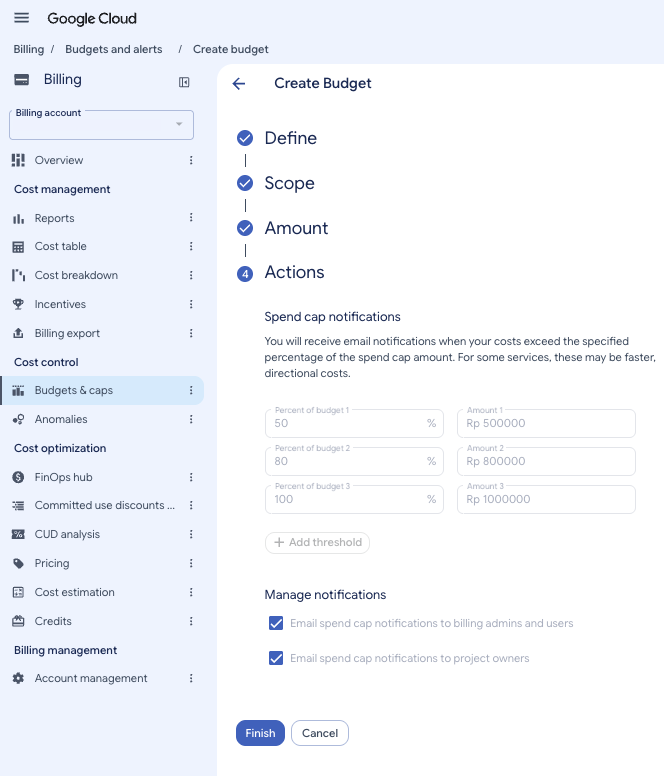
 4. Configure Notifications
This step is read-only. Google sends emails to billing admins and project owners at 50%, 80%, and 100% of the cap, and the thresholds and recipients cannot be changed. Review them, then click Finish.
 Prefer to watch? Here is the video tutorial for adding a spend cap.
Removing a Spend Cap
To remove a spend cap, delete its budget. A deleted budget can’t be recovered.
1. Select the Budget
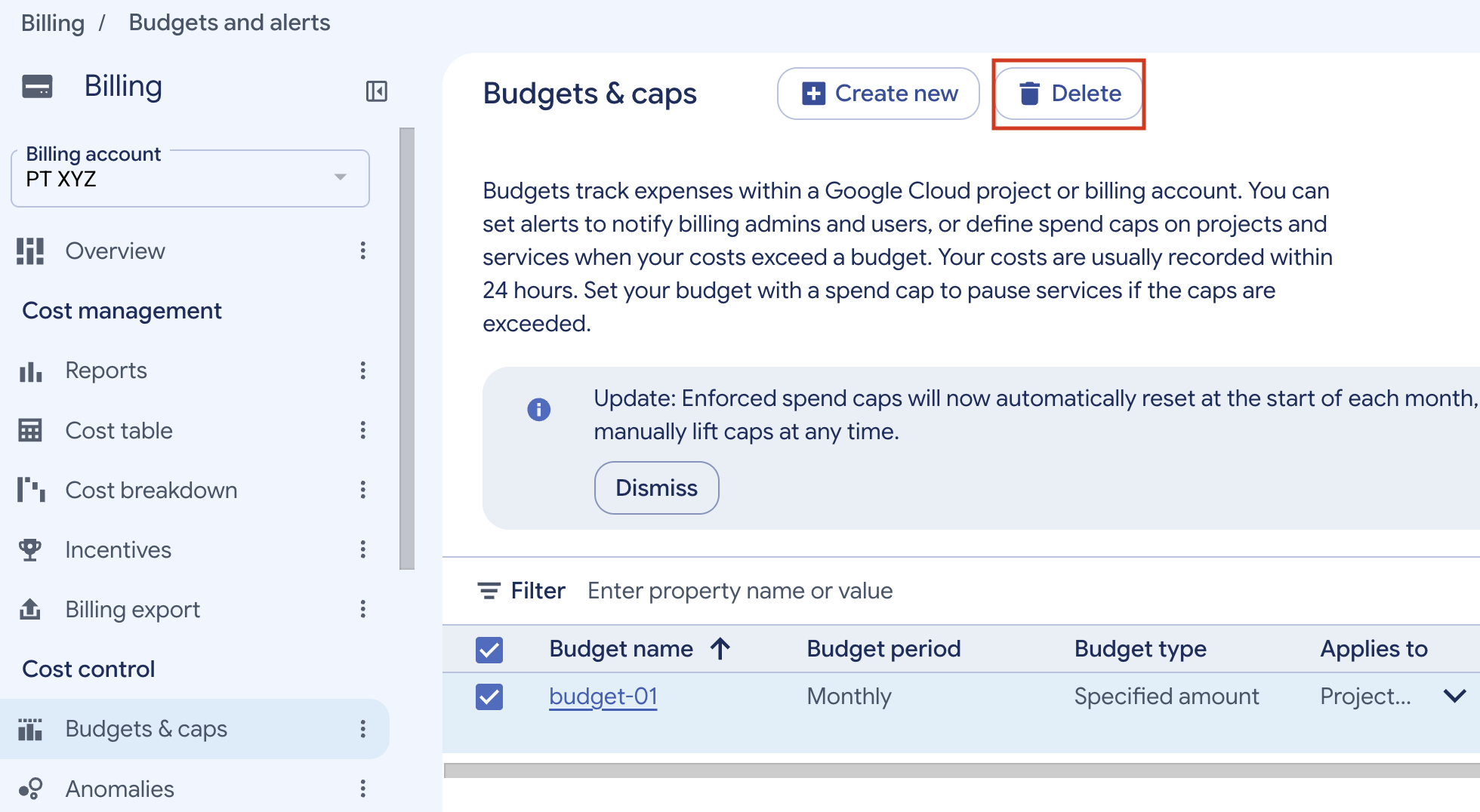
Go to Billing > Budgets & caps and tick the checkbox next to the budget. Delete becomes available.
 2. Delete the Budget
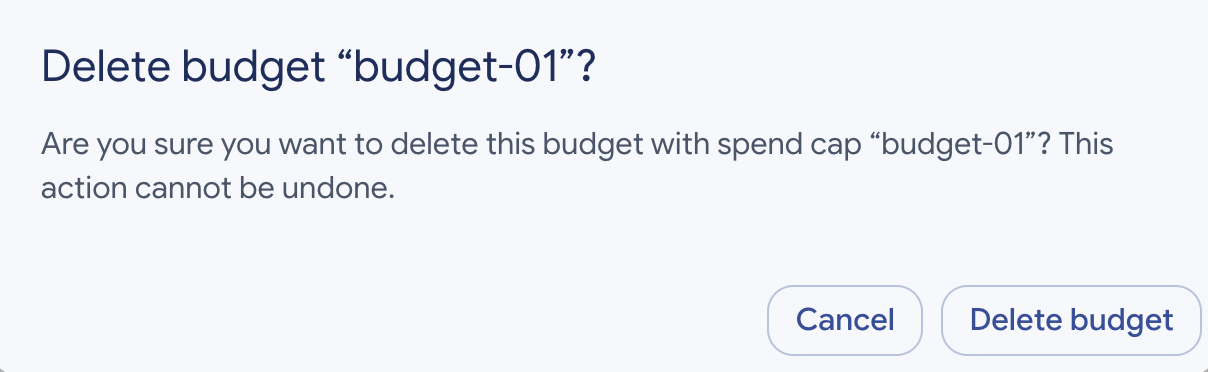
Click Delete, then click Delete budget in the confirmation window. This action cannot be undone.
 Prefer to watch? Here is the video tutorial for removing a spend cap.
Things to Note
Google Cloud may take a few hours to update cost data, so the final spend can be higher than the limit.
Once spending reaches the limit, new requests to the service stop for that project. Requests already running can finish, and compute and storage costs will continue. Check that this won't cause problems in production.
The cap resets at the start of each month. To start the service again before then, open the budget and click Lift spend cap. The service may take up to an hour to work again.
Credits and discounts aren't included when calculating the cap.
You can't edit or delete the budget while the cap is active. To make changes, lift the cap first.
References
Manage spend cap budgets, Cloud Billing documentation
Cloud Billing release notes, spend caps in Preview (July 27, 2026) and generally available for a limited set of services (October 13, 2026)
Note: This post is based on Google Cloud’s documentation as of October 22, 2026. Spend caps are new, so limits, eligible services and behavior may change. Check the references above and the official documentation for more recent or further information.
Want help putting this into practice?
Book a consultation with Indonesia's Google Cloud Diamond Partner.